Viewing HLDOs
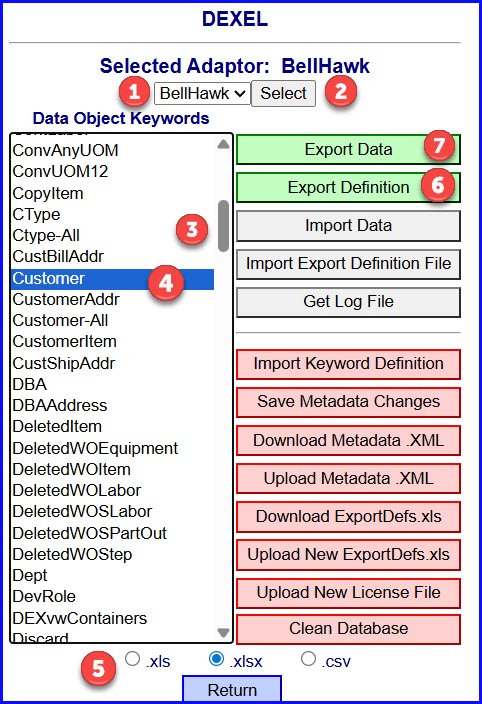
For most users it is sufficient to use the pre-existing HLDOs for the BellHawk and, if needed, the Control database.
This is done through the DEXEL Sys Admin screen. Here:
- Users can select the Adaptor to view (1) and the click on the Select button (2) to view the list of available HLDOs.
As standard this is BellHawk or Control but if other Adaptors, such as DEX, have been added to the System, they would also be selectable.
- Once the list is displayed, users can scroll up and down the list (3) of available HLDOs and select one (4).
- Then users can select which Excel format (5) to use for Exported spreadsheets.
- Users can then export the selected HLDO in Excel format by selecting the Export Definition (6) button.
- Users can also select the Export Data button (7) to view a limited selection of data for reference purposes.
Please note that the Excel file data is converted to XML metadata files, one per adaptor, when uploaded into DEXEL,
which are loaded when an IAP is run.
For other functions that can be performed using DEXEL, please see the
systems administrator user manual for the software package or platform being used.
Please click here to see a description of
how the HLDO instance data is exported
in Excel format.
Copyright © SmartOpsMgt LLC 2026